Alembic account
ALEMBIC ACCOUNT
General
To log on to the website, you need an Alembic account. If you already have an Alembic account you can use your email and your Alembic password to log in. To log onto the shares and the Alembic computers, you can log in with your username (student/employee/Alembic number) and your Alembic password. If you haven’t got an account yet, come visit us in the Alembic board room and we will help you create an account.
Change personal information
Do you want to change the contact information Alembic uses of you? Please send the changes to the secretary of Alembic; secretary@alembic.utwente.nl.
Changes have to be sent if one of the following details changes:
- Living address
- Mail address
- Phone number
- Graduation/quitting your study
- Receiving the CaT physically, digitally or no more
- Bank account number
Alembic mail
How to login for the Alembic mail?
- Go to the Outlook Web App in your browser (outlook.com).
- Log in with your initials_with_dots_and_surname@alembic.utwente.nl (for example for John Ferdinand Doe it is j.f.doe@alembic.utwente.nl) and your Alembic password.
How to access shared mailbox?
Option 1:
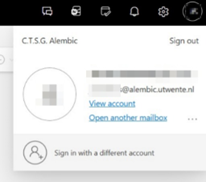
- Click on circle with some letters in it in the top right corner of the webpage to see the following popup window.
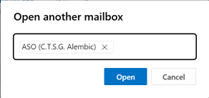
- Click on ‘Open another mailbox’.
- Type in name of the committee, select it from the dropdown menu and click on ‘Open’.
- A message is shown about forwarding to <committee_name>.group@alembic.utwente.nl, this is required for you to receive the mails on your external email addresses. Therefore, you shouldn’t change this as this will break the mail chain. Any changes will be lost with the next synchronization.

Option 2:
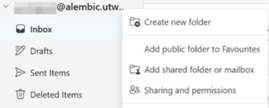
- Click on the three dots next to the email address in the left side panel above the ‘Inbox’ to open the following popup window.
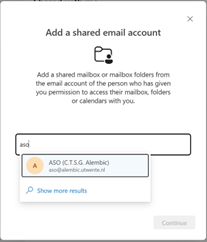
- Click on ‘Add shared folder or mailbox’ to get the following popup window.
- Type in name of the committee, select it from the dropdown menu and click on ‘Continue’ to see the second window and click on ‘Close’.
- Click on the ‘X’ to close the settings window.
- Beneath your our mailbox in the left side panel, you will see the added shared mailbox you just added. For example, how is shown in the following image.


Option 3:
- Format the link with your comittee name which you can fill into the URL bar of your browser:
https://outlook.office.com/mail/<committee_name>@alembic.utwente.nl/ - The shared mailbox will be opened. A message is shown about forwarding to <committee_name>.group@alembic.utwente.nl, this is required for you to receive the mails on your external email addresses. Therefore, you shouldn’t change this as this will break the mail chain. Any changes will be lost with the next synchronization.
How to send as the committee email?
Option 1 (Online):
- Follow the instruction to open another mailbox in a different web browser screen (Options 1/3).
- Click on ‘New email’ and type your mail.
Option 2 (Online):
- Click on ‘New email’ in your personal Alembic email account.
- In the top menu bar, click on 'Options’ to select ‘Show From’.
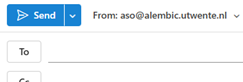
- Click on ‘From: <email_address>’ to click on 'Other email address…’.
- Type in the name of the committee, select it from the dropdown menu and click on it.

Option 3 (Desktop):
- Make sure you logged in to your personal Alembic email account in the Desktop version of Outlook.
- Click on ‘New Email’.
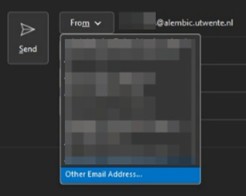
- Click on ‘From’ and then ‘Other Email Address…’.
- Type in email address of the shared mailbox and click on ‘OK’.
- Type your email and send the email.

Note: If you have access to the shared mailboxes of either ONCS, LuCie or KIKSTart. You also have access to the function accounts. These mails are not forwarded to your external/personal Alembic email address.